How To Fix Xbox Error 80072ef3

You will receive the error code 80072ef3, which prevents you from logging in to your Xbox Live account after you have provided your e-mail and password. The problem most commonly occurs due to outdated or corrupted cache files containing old information stored in them. So, if you log in or do something else that the system wants to check the cache for, this error will be displayed.

Clearing the cache contents will usually fix this error. Before you begin, make sure your Xbox can connect to the Internet.

Delete the cache files on the Xbox

Press the guide button on the controller. Go to Settings -> System Settings and Select Memory.

  • Select memory, but do not select it. We do not have to open it.
  • Press the Y button on the device option controller.
  • On the Device Options screen, select Clear System Cache
  • In the prompt for maintenance, select YES

Now we have to download our live profile again.

Press the guide button again.

Select Download profile. If it is not displayed, press the X button and then check.

  • Select Download Profile at the bottom of the screen again.
  • Enter your e-mail address for the Xbox account and enter your password to log in.
  • Enter your e-mail address for the Xbox account.

How To Fix Unfortunately, Contacts has ended the error

Unfortunately, the contact has stopped, the error comes up. Most of these issues come from the cache that Google stores in local storage to speed up the process of reloading Google servers and reduce the load, or when a second app / settings become incompatible. This particular issue is specific to Google+.

Errors are usually populated when the servers and device are out of sync. An example would be if something has been updated on the server and the phone is still looking in its local memory (cache).

Steps to fix unfortunately, contacts has stopped

1. Go to Settings on your Android device.

2. Select Apps and then ALL (by swiping to the right)

3. Find Google + and open it.

4. Tap or click Uninstall Updates, and then click Disable.

Restart your phone and the contacts should now work.

One of the above methods should fix this for you. If none of them work, then a factory reset is required. Make sure you back up your data by syncing with Google.

How to Fix Google Play Store Error 907

Google Play Error 907 is a bug in the Play Store. The full error message would be similar to the app name could not be downloaded due to an error. (907). This has surfaced after the Play Store has been updated by Google. This error usually occurs when you try or try to download an app from the Play Store.

Tracing debugging errors indicates permission issues when Play Store attempts to download and save part of the app to the SD card.

Follow the steps below to resolve this issue.

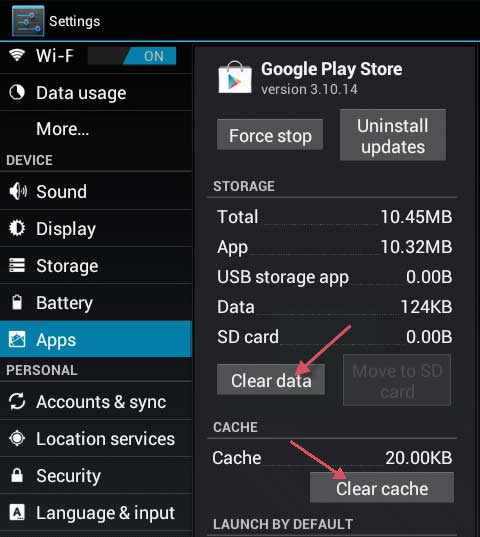
1. Go to Settings -> All and select Google Play Store


2. Tap or select Force Stop. Then tap / Select Clear Data, then Clear Cache.

3. Once this is done, try to install the app now. If it still does not work, go to step 4

4. Go to Application Settings -> All -> Google Play Store and select Uninstall Updates.

5. Reopen Play Store and wait a few minutes (make sure your phone can access the Internet).

Test if you can download the app now. If not, go to step 6.

6. Go back to Settings -> Select memory and select Unmount SD card

Test if you can download the app now. If not, then go to step 7.

7. This time, eject the SD card and repeat the test.

If it still does not work, repeat steps (1 through 4) and you should be able to get it up and running.


How To Find A Lost Android Phone

If the tracking feature is available for a smartphone, it must be activated. Android, has this feature and therefore it works, says the standard and the Google search enabled. This option is available under Ortungsdienst. So much so that this feature is activated, you can follow your Android device over your Google Account or over the Device Manager app.

How To Find A Lost Android Phone  https://www.softgeek.co.uk/

Follow these steps to find your Android device on your desktop: Visit www.android.com/devemanemanager Report in your Google Account They get a description, because your device is there

You can also lock and erase your phone, or dial Ring, which triggers an alarm on your device at full volume for 5 minutes

To do this on a device other than your desktop, load Android Device Manager on the device you want to use to find your lost phone and log in using your Google Account.

Hopefully, this will not only help you prevent the loss of your Android and all your data on your device forever, but also to track down your lost or stolen phone.

How to Mail Pictures From IPad Or IPhone

Email A single or multiple photos from your iPhone and iPad


Method 1: Attach photos to email

Emailing an image / photo from an iPad or iPhone is about the same in both devices, except for the size of the tablets that result in another view. Generally, there are two methods that I will go through in this guide. However, for both methods, it is important to have an email already set up if you do not have an email program

See: How to configure email on iPad / iPhone

Method 1 is limited and it only allows you to send no more than 5 photos.
1. Open the Photos app by tapping the Photos icon on your iPhone / iPad screen.

2. Tap the album containing the pictures you want to email.


3. Press Select.

4. Press 5 photos you want to email, no more than 5. If you select more than 5, the Mail option will disappear.

5. Press the up arrow and select Mail.

6. You will now be taken to the Mail app with composition view open, type the email address, the subject in the To and Subject fields, and press Send.

Method 2: Copy and post photos to email

With Method 2 you can attach multiple images without any problem or pay for any apps.

1. Open the Photos app and select your Album.

2. Touch Edit and select photos you want to copy.

3. Press the up arrow at the bottom and press Copy.

4. From the Home screen, go to Mail.

5. Touch the Pen icon to enter the composer.

6. Write the address of the recipient and the subject.

7. Then, the area where you write the message Press twice and press Paste

8. This attaches to any photo you copied to the message.